Computer Multitasking
Computer Multitasking - What Even is It?
It's easy to take your computer for granted every day without realizing how much is actually going on. However, when you really think about, your computer is doing a great deal of work, and it seems to be doing it all at the same time. When you start up your computer for the day, you might open up Outlook in addition to Chrome to start doing the work you need to do. If you like listening to music, you would probably open up Spotify as well. Add in Word, Minecraft, VSCode, and you are looking at a lot of apps that your computer needs to run at the same time!
You might be thinking: "But that's just 6 or 7 things. It should be easy for my computer to run that many things. I have a 12 core CPU after all!"
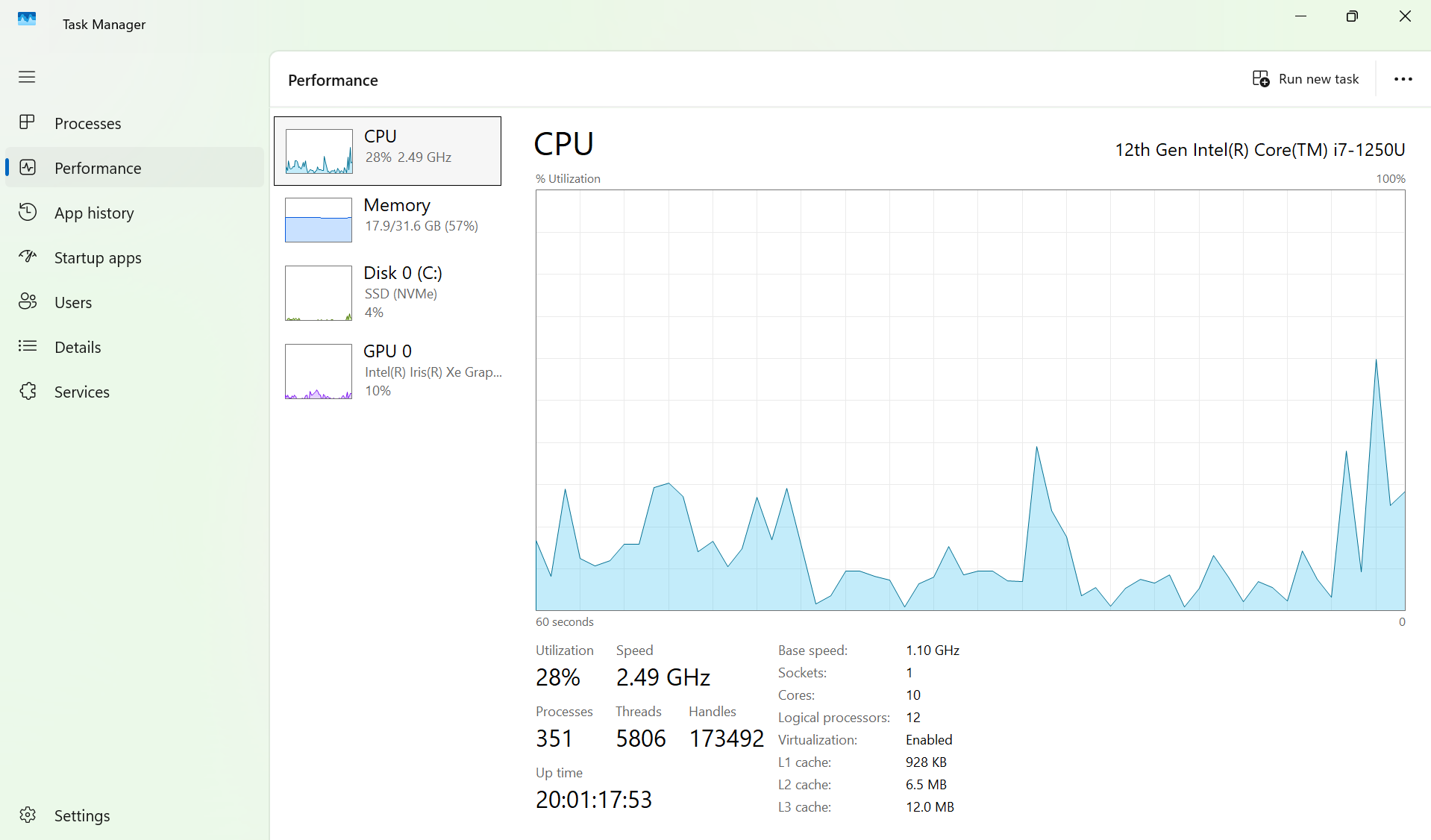
On your keyboard, press ctrl+alt+delete (for windows users), click Task Manager, press performance, and click on CPU. You should get a display with a graphic showing how much of your CPU is being utilized, in addition to the number of processes, threads, and handles being used. On my laptop, I noticed around 351 processes running, with around 5806 threads! This is way more than just 6 or 7 things!
Intro to Processes and Threads
Sure, the Task Manager showed us that we have a bunch of things called processes and threads, but what actually are they, and how is the CPU seemingly able to run so many of them? To understand what both of these things are, we should take a brief dive into how memory works in a computer system. This may be confusing, but I will try to explain it in simple terms.
Memory
Every computer has memory, as memory is essential for a computer to function. I like to categorize memory on a computer into 3 main types:
- CPU Memory. The CPU itself has many tiny but extremely quick memory areas called registers and caches, which allow for immediate data handling.
- RAM (Random Access Memory). RAM is much slower than CPU memory but much larger, and this is where your computer stores data temporarily for actively running applications (think of the data for Minecraft, Chrome, Outlook, etc. being stored here). This memory is volatile, meaning it will lose data when power is off.
- Secondary Storage (SSD/Hard Drive). This is where your data gets stored in the long run. Your operating system, programs, and files are stored here. This memory is much slower than RAM, but also much larger (just like RAM and CPU).
In your Task Manager, you can see how much RAM memory your computer has by Clicking on "Memory" within the "Performance" tab. My laptop has 32.0 GB (Gigabytes) of memory available for the RAM to use, which sounds like quite a lot! By looking at my task manager, I can see that just over half of my RAM is being actively utilized.
But how is a computer able to use 16 GB of memory at the same time?! We'll get there, eventually. But for now we should look just a little closer at how memory works.
Memory Address Space
A memory address is a unique numerical identifier for a specific storage location on your computer. The actual components of a memory address (header, index, offset), allow you to find exactly where the data is stored, and what the data is (we won't go into that in this post). The memory address space is the set of all possible addresses that a processor can use to access memory (cache, RAM, or disk). Address spaces are divided into:
- Physical Address Space - These are the actual addresses in the physical RAM chips. On my laptop, I have 32 GB worth of actual memory to play with.
- Virtual Address Space (this may be confusing for now) - This is an abstraction presented to each running program (process) that makes it seem like each program has access to a large, contiguous block of memory, even if in reality, the memory addresses are not all stored in RAM (we'll explore this further). It is key to note that virtual memory addresses don't directly store data; they are simply labels within each program's address space that are translated into physical addresses (where the data resides).
How does Virtual Memory Really Work?
When I defined virtual memory, I didn't really explain how it worked in great detail. This would be a good time to elaborate. Like I said in the definition, every process gets a block of virtual memory. Because processes are doing real things, and virtual addresses don't actually store real things, there needs to be some way to translate all the virtual addresses given to a process into real physical addresses on the RAM. This is where Page tables come in. Page tables are a data structure that store mappings between virtual addresses and physical addresses. When a virtual address is actually needed within a program, it gets translated into a physical address using the mapping on the page table and subsequently stored in RAM. If RAM is already full but the virtual address is still needed, then the computer will have to decide which memory address to kick out of RAM to be replaced by the new virtual address which it would have to pull from secondary storage (we won't get into this either, but just recognize that there are different ways to choose which memory gets kicked, and memory does get kicked in the end).
Below is a diagram visualizing the mapping between the pages in a process and the actual space that they take up in Physical memory. Page tables are responsible for storing the mappings between the virtual addresses in each process to the physical addresses in RAM!
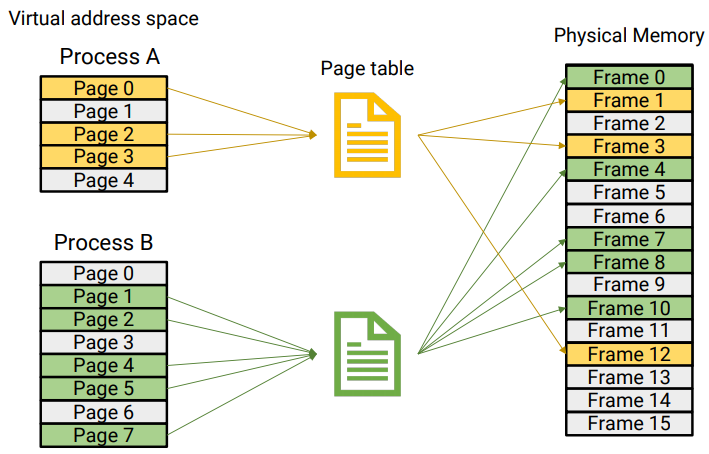
In this diagram, RAM (physical address space), is not filled up, as there are still a lot of empty (grey-white) frames not in use. With that being said, if more processes were added, eventually the physical memory would fill up, and then computer would need to decide which address to kick out, as mentioned earlier.
Notice that virtual address space allows for a program to think it has very large, practically unlimited memory, since only requested virtual memory from a program is actually turned into physical memory, allowing each program to think it has a bunch of space! By allocating virtual memory to each process, a computer is able to run several processes at once!
The OS Kernel
I have not introduced the OS Kernel yet, but it is probably best to bring it up now. The OS kernel is the core program of an operating system, bridging the gap between software and hardware applications. It handles basically everything on your computer, including memory allocation, hardware access, and of course, process scheduling. Before explaining future topics like concurrency and parallelism and how they relate to processes and threads, it is important to understand the fundamental importance of the OS kernel, and how it is involved heavily in these processes.
Memory Retrieval
This can get to be a very in-depth topic, so I will explain it as simply as I can, and in very general terms.
The CPU always wants to access memory as quickly as it can. Because of this, it first checks to see if the address for the data it needs is in one of the caches that are closest and fastest relative to the CPU. If the address is there, then the CPU can immediately use it and no further action is needed. However, if it's not there, it needs to go pull the address from the RAM, which is much slower (this is called a cache miss). When it goes to the RAM, basically the same thing happens, where if the data is in RAM, then it gets pulled for use by the CPU. However, if the data is not in RAM, the CPU needs to go look for it in secondary storage, which is again way slower. This is called a page fault. Eventually, the address is pulled from secondary storage and ultimately makes its way to the CPU registers for direct calculation.
Critical to the efficient memory retrieval is a special cache called the Translation Lookaside Buffer (TLB). Instead of storing actual data and instructions like a normal cache, this cache stores recent virtual to physical translations, which allow virtual memory to be translated to physical memory almost instantly if the requested data translation is stored in the TLB. This translation would avoid much slower page table traversals in main memory and improve the memory retrieval flow. Because of the advantage of the TLB, the TLB is usually called almost immediately or in parallel with the initial cache lookups to maximize speed and efficiency.
Below is a diagram that visualizes this general flow (notice the TLB lookup happens before the cache lookup in this case):
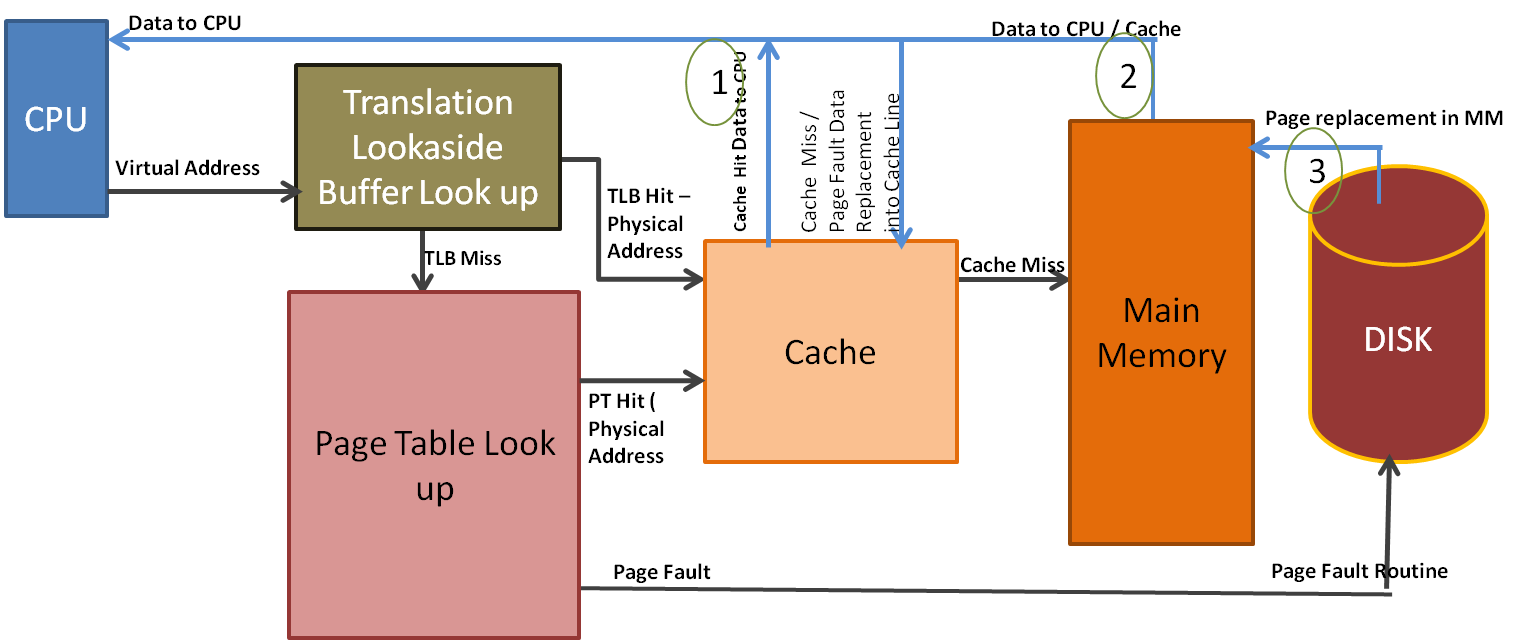
That was an extremely broad overview of memory access, but it covers the general flow of how the CPU accesses data within memory. Now we need to get back to the main topic of discussion: how does this relate to processes and threads, and how are 351 processes able to be simultaneously be run on my laptop?! Let's finally talk about these things.
Processes
A process is an active, running instance of a program on your computer. Think of a program as the instructions for the process, while the process is the actual, for lack of a better term, process that the instructions are talking about. One program can run multiple processes, and each process is an instance of that respective program. Every process gets its own private, virtual memory address space! This means that, in general, processes are not able to see or access any data from other processes.
Threads
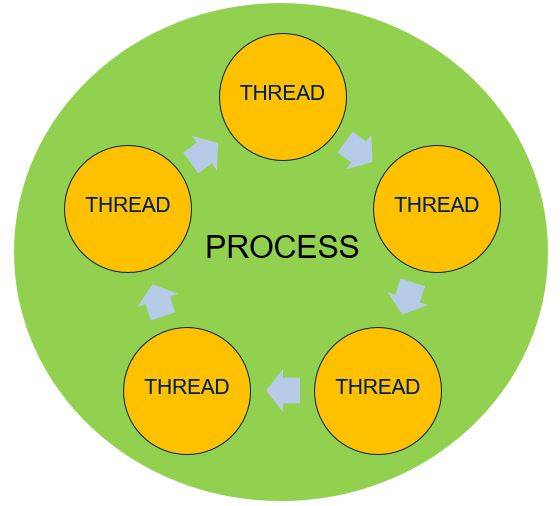
A thread is a lightweight process within the running program, meaning that a program/process can have multiple threads running within it that are each carrying out different tasks! For example, if each tab on your Chrome browser is a process, within each tab, you are able to simultaneously download something while searching for something, or maybe watching a video on YouTube. Each thread within the overall Chrome tab process is controlling those separate tasks, like download, video, etc. By leveraging threads within a process, many things are able to get done at once! Threads are critical to executing tasks within a process, and therefore every process has at least one thread. It is important to note that all threads within a process share the memory within that process, which allows for them to work together to get different tasks done. However, this could also pose issues, and proper synchronization is needed to ensure that the process is run smoothly.
Bringing it all Together with Concurrency and Parallelism
We know what threads and processes are now, but we still need our first question answered! Sure, virtual memory guarantees that a computer has enough space to run programs at the same time, and multiple threads running within a process make it seem like one process can carry out multiple tasks at once, but still, how do these things actually all run at the same time?
The answer: They don't. Mostly.
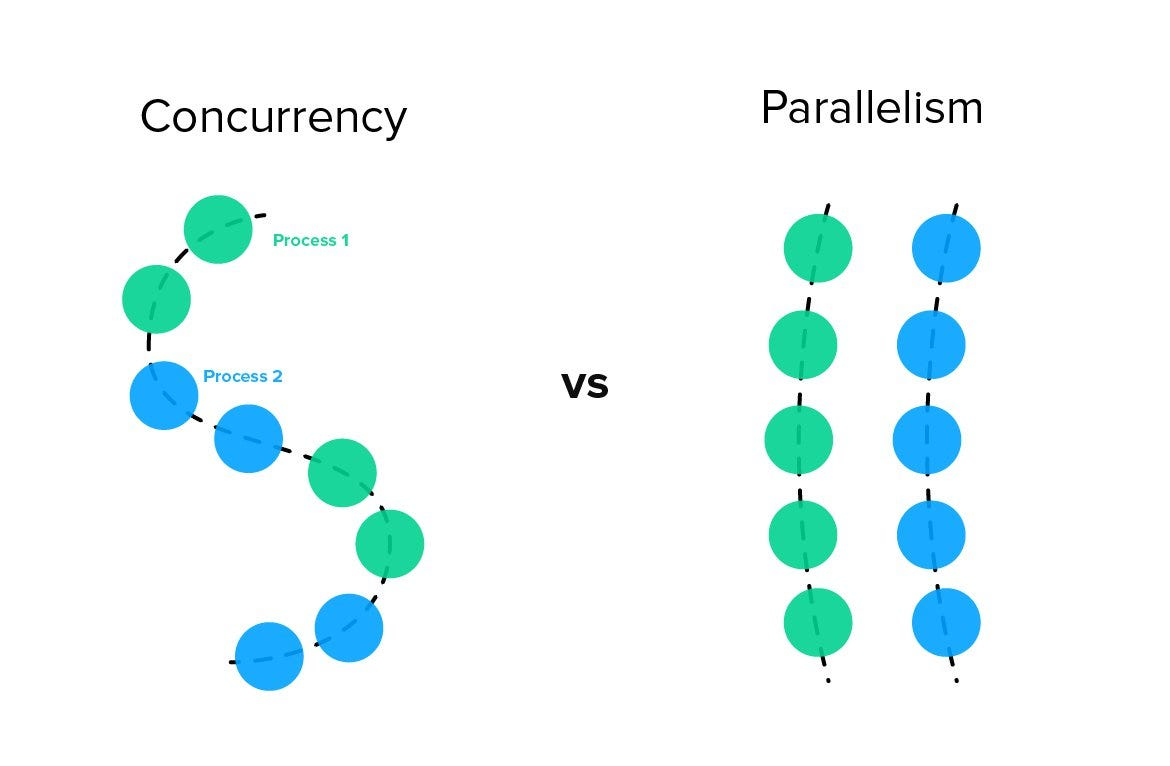
While a CPU has access to lots and lots of memory, each CPU core can only execute one instruction at a time! This means that the number of CPU cores in your computer are the hard limit for the number of processes that can actually run at the same exact time! This execution of multiple different things simultaneously is called parallelism, and this entire blog basically set up the foundation for this definition. All the different things running on your computer are actively giving the illusion of parallelism.
Clearly, parallelism is not what is mainly happening on our computers (my laptop has thousands of threads and hundreds of processes running)! So then what's happening?
The real answer: Concurrency
Concurrency is the real answer to the question that was posed from the very beginning: how do so many things run at once? They don't! Concurrency is about managing multiple tasks to make them appear to run at once! You can think of concurrency as a chef cooking one meal. This singular chef has to switch between cutting up onions, stirring up the pot, kneading bread, etc. in order to eventually complete their recipe. Now, let's say you have 5 of these chefs cooking the same meal. Now you have parallelism, since each chef is cooking the same meal at the same time! This is basically how computers work! Each CPU core is in charge of rapidly switching between processes in order to create the illusion that everything is running at once.
With this being said, it is key to note that CPU scheduling does not order things based on processes, but rather by the actual threads within the processes themselves. This is because threads are the fundamental units of execution that are actually doing the specific tasks, while processes are essentially just the running instances of a program with their own respective memory space. The process is the entire factory, while the threads are the individual workers. The CPU scheduler needs to know the order or the actual workers, since they are the ones doing the work! So while the ability to distinguish between a process and a thread is important, for this next section, just understand that the scheduling is based around the actual threads themselves.
How is Concurrency Managed?
We will take a broad look at how concurrency is achieved through CPU scheduling, which should finally give us a decent answer to our original question!
Concurrency with Context
In order to switch processes rapidly, and then go back to the same process again like nothing happened, the OS kernel needs to save the complete "context", or state of the current process. This context is stored within a critical data structure called the Process Control Block (PCB), which itself is stored in a special section of RAM called the kernel space. The kernel space is a dedicated area for the operating system to manage information in RAM. The "context" of each process stored is critical, and there is a lot of different key information typically stored in "context":
- Program Counter - This is a CPU register that points to the next instruction to execute.
- Stack Pointer - Points to the top of the process's stack. The stack is a region of memory that a running process uses to manage temporary data during execution. While we won't go into how a stack is structured, just recognize that it is crucial for a process to operate.
- General-Purpose Registers - These hold temporary data and variables used by the process.
- Status Registers - These hold flags and other status information.
- Process State - This gives the state of the process (e.g., running, ready, or blocked/waiting).
- Process ID - a process's unique identifier.
- Priority - Used for scheduling.
- Memory Management Info - The Page Table Base Register (PTBR) is the key context stored here. The PTBR is a CPU register that holds the starting physical address of the page table for the currently running process! This is huge, because remember we need page tables to translate between virtual and physical memory addresses, since programs always interact with virtual memory! This register points to the physical address of exactly what enables that translation to happen. When a new process needs to run, this part of the context is updated with a pointer to that process's page table address!
- Open files, I/O status, and accounting information could also be stored in a process's context, and the exact context info stores is OS dependent. By saving this context in memory for each process, the OS can easily switch to any process it wants and restore execution exactly as it left off, making it seem like the process was always running! The OS just has to load the saved context from the PCB, and then it's good to go.
But wait? What about threads being scheduled?
This is a good question. It's likely that the PCB being scheduled is actually a TCB, or Thread Control Block, which stores very similar context to the PCB, except it is managing the context of an individual thread within a process in that PCB. To make things simple for this blog, imagine the data structures in the ready queues as being PCBs, while recognizing that there are many different ways to implement CPU scheduling.
How does the OS decide which process/thread to select next?
As we saw by looking at Task Manager, our computers need to be able to choose from many processes to decide which one is allowed actual execution time! We won't dive too heavily into this topic for processes, but we will go over the basic fundamentals.
The OS decides which process to load using the CPU scheduler, which is a core part of the OS that is in charge of selecting the next process to be executed. The CPU scheduler picks from a data structure called the Ready Queue, which stores pointers to each processes PCB. The ready queue is located in the kernel space for easy OS access. In order for a process to enter the ready queue and wait to be selected for execution, it has to be in a "ready" state. Processes move between states throughout their execution. When they are first created, they are in a "new" state. When they are moved to the Ready Queue, they are in a "ready" state. When they are running, they are in a "running" state. If they are being blocked by a signal or system call, they are in a "waiting/blocked" state, and when they are finished running, they are "terminated." The CPU scheduler picks processes in the "ready" state from the Ready Queue, and the selected process gets the CPU! When the slice of time ends for that respective process, the OS kernel performs a context switch, which saves the old process's context and loads the next one from the Ready Queue!
How does the Ready Queue Really Work?
To understand this, we should back up and look at a couple data structures. First off, a queue is a fundamental data structure that operates on a "First In First Out" basis (FIFO). Think of it like an escalator. If there are a line of people waiting to get on an escalator, the first person to get on the escalator will be the first person off the escalator, second person on will be second off, etc.
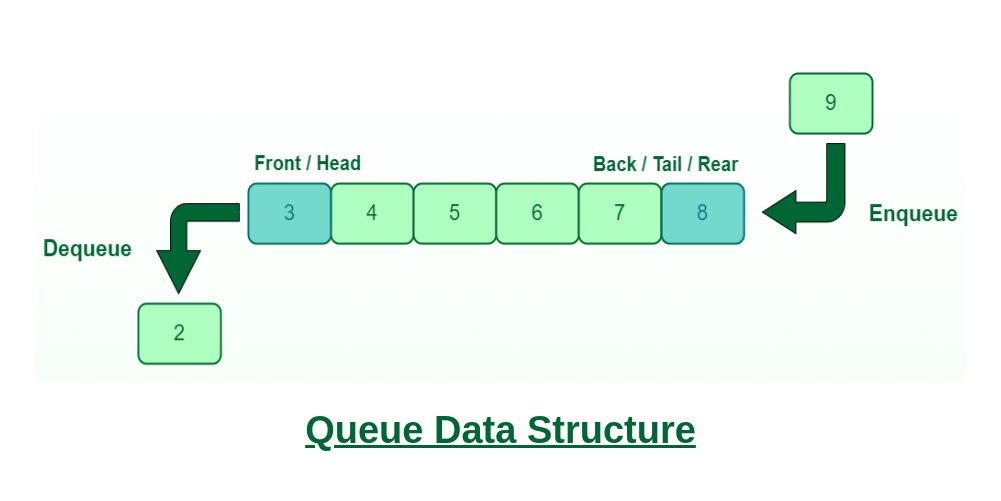
This is how a queue works, and the same thing applies for the CPU scheduler. Well, sort of. Most modern CPU schedulers make use of a priority queue data structure, where instead of the FIFO structure, the first element that leaves the queue is actually selected based on the highest (or lowest) assigned priority that it is given.
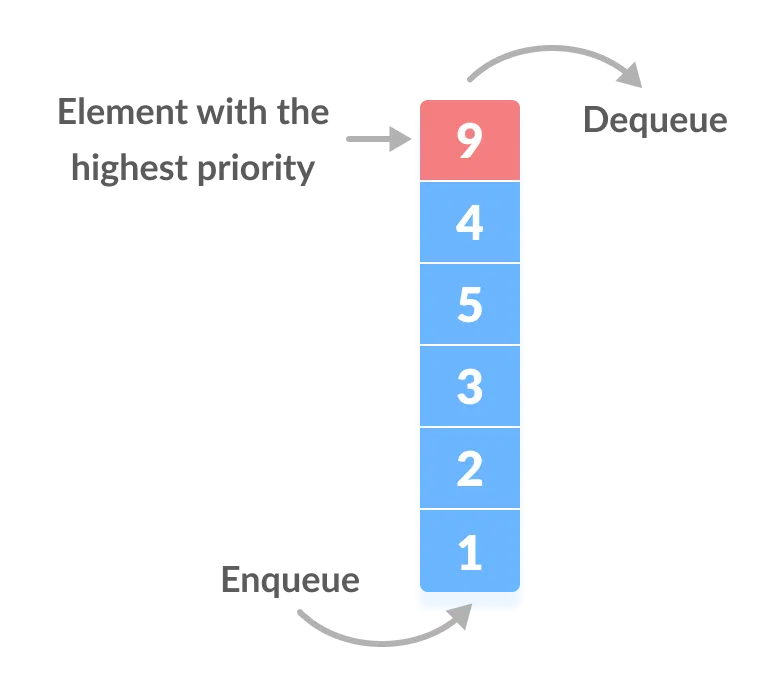
In the above image, the element (which would be a process for our purposes), with the highest priority of 9 gets to leave the queue first. The problem with the above image of course is that it makes it appear as if the process that enters the queue first slowly grows in priority until it reaches the end and then gets dequeued, which still follows the FIFO ordering. The underlying data structure in many priority queues is the binary heap, which is an instance of a binary tree that must satisfy something called the heap property, which has two cases:
- Case 1: The heap is a max heap. In this case, every parent node must be greater than or equal to its children.
- Case 2: The heap is a min heap. In this case, every parent node must be less than or equal to its children.
Below is a diagram showing two different binary heap data structures representing both a max heap (right side), and min heap (left side).
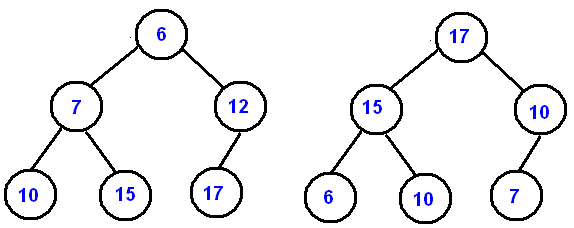
By looking at it this way, it becomes more clear how different processes with varying priorities become selected. Based on whether the scheduler is going with a minimum priority goes first or maximum priority goes first implementation, the process/node at the top of the tree gets selected, and then the tree rearranges itself through programmed operations called heapify operations to satisfy the respective heap property, and a new root node is selected. When a new process/node gets added to the structure, the tree also rearranges its ordering to satisfy the heap property by either:
- "swimming" - moving an element up the heap and towards the root node.
- "sinking" - moving an element down the heap away from the root node. By using a binary heap, priority queues are able to work effectively and efficiently with a good time complexity of O(log n) (this basically means that stuff is getting done pretty quick).
The method of CPU scheduling that we just examined above is known as Priority Scheduling. It is important to recognize that this is just one of many ways to schedule things on a CPU, with other scheduling algorithms including Round Robin, Shortest-Job-First, First Come First Served (we discussed the premise of this with our basic FIFO queue), and Multilevel Queue Scheduling (utilized in modern operating systems like Windows). However, this should give us a better understanding conceptually of how CPU scheduling works!
Conclusion
The above content is really just scratching the surface of CPU scheduling, and there is a ton of stuff I could continue to write about. However, I probably wouldn't ever finish this post if I did. With that being said, just recognize and appreciate that CPU scheduling exists under the hood, and it is what enables us to see many things going on with our computer at once! I hope this post was informative, and I'll see you guys next time!